Notes of Excel
What is EXCEL?
MS EXCEL is a Microsoft spreadsheet application. Spreadsheets store the data in rows and column and you can manipulate this data. MS Excel provides range of functions covering a variety of mathematical, statistical, financial and other calculations.
Workbooks and Worksheets
When we open MS Excel then automatically a new workbook is open. The workbook is
basically the file in MS Excel in which we work and store our data. Each
Workbook can contain a number of Worksheets or Sheet.
A worksheet or Sheet is a grid like a Table which divided in to Rows and
Columns. In Worksheet columns are labeled with A, B, C... and rows are labeled
with numbered 1, 2, 3, ...etc and each worksheet is made up of 256 columns and
65,536 rows. The intersection of a column and a row is called cell or Box
. Each cell have a unique name which is called cell Address or Cell Name or Box
name.
Components
of Ms Excel interface
Some of the major components of MS Excel interface are:
Title Bar
The title bar contains the name of the program. On the extreme right are the buttons to minimize, maximize/restore and close.
Office Button
Office button is located in the upper-left corner of the Microsoft Excel 2007 Program window. Office button contain those Options command that was on the Tools menu in previous version like that Save , open Print etc.
Menu Tab
Below the title bar is menu tab is located ( Commands Tab). we can select any menu item from this bar.
The Office Ribbon
This panel is located at the top of the program window. The office ribbon contain following item:
Command Tab
This is also called menu tab. This tab contain some option. when we select any option then related command are display below this tab.
Contextual command Tab
This tab is below the Command Tab. When we click on any option from Command tab then related commands depending on your context are appears in this tab.
Quick Access Toolbar
The small tool bar that appears on the Ribbon on left side and offers single-click access to most needed commands, such as Save and Undo and Redo. You cal also some more command which you commonly use by customizing this tool bar.
Name Box
Name Box contains the address of the active cell. You can also navigate to another cell simply by entering the address of that cell in the Name Box and pressing the Enter key.
Formula Bar
Formula Bar contains the contents of the active cell. Specially when you type the formula then the formula appears here while the value of the formula appears in the cell. This is also contain fx button which will open the Function Dialog box.
Worksheet Tabs
Worksheet tabs is located at the bottom-left area of the spreadsheet. By default there are three worksheet tabs appear in workbook you can also Add more sheet Tabs.
Status bar
In the bottom of working window a bar is called status bar which displays status information and includes buttons that allow you to change your view.
Excel Formulas
In Excel formula is Arithmetic expression which is define by user. This arithmetic expression contain Arthritic Operator, cell references or values. When you enter formulas into your Excel worksheet then by default formulas calculated automatically.
For Example

-
Type number in any cell in our example Cell B4.
-
Type the other number in any cell in our example cell B5.
-
Now add these two cell by Entering The formula in Cell B6 as shown in Above Image (this is described below in detail) .
-
Press Enter. Excel calculate the value and answer is display in cell B6
The formula =B4 + B5 add the Two values in cell Number B4 and Cell number B5
Every formula is start with equal sign (=)
=
Now write first cell reference which is B4 and refer to value 30. You cal also click on cell B4 the cell reference automatically display in formula cell.
B4
Then write the Arithmetic operator we are going to use + sign for addition.
+
Now write the second cell Reference which is B5 and refer to value 20.
Now all above step when combine the shape of these step is as:
=B4 + B5
When you press enter Key Then This formula disappear and the calculated value which is 50 will be display.
you can edit again this formula by double clicking on the formula cell or click on formula and then press F2 key.
Cell
Reference in MS Excel
Relative
Reference
Relative
Reference
The Cell reference which some time also called Relative Cell reference. Normally, if you copy a formula which involves a cell reference to another location, then the cell reference is adjusted relative to its starting point. For example, copying a formula which calculates the sum of a column of numbers to an adjacent cell will sum the adjacent column of cells. The formula has updated automatically to reference adjacent cells.
Lets take an example and describe this in batter and easy way:
If you have a table have some values in column A and B:

So when we copy the formula =Sum(A4:A7) from Cell A8 to B8 then its automatically update its reference such that =Sum(B4:B7) as in above image. These cell reference are called Relative Cell Reference.
Absolute Reference
Sometimes when we copy a formula and we want that cell reference remain unchanged, regardless of where the formula is placed then we use Absolute cell reference in which cell address not change when its copy from one location to an other location. in Simple word we say that in Absolute cell reference the cell address or fixed so that it does not update when we copy the formula to another location.
How we Make a Reference Absolute
1. Type a $ sign before both the column letter and the row number of the cell reference. For example the relative reference A1 becomes the absolute reference $A$1.
2. In the Formula bar highlight the cell reference for the cell, which is to be made absolute then press the F4 key from keyboard. $ signs are automatically placed in front of the column and row references.
For Example :

In above image table you can see that we want to Fix the A4 address. its means every number of column B is multiply by 25 which is A4. So A4 never change when we copy this formula in next cell C4 to C5 and so on.
Excel Function
Excel functions are used to perform mathematical calculations. There are many built in function in excel which perform some specific task for example Sum . Average , Count etc. Functions are pre define formulas. The difference between function and simple regular formulas which is define by user is that Function perform mathematical and other calculation but not contain any operators, such as +, -, *, or /.
For example:
=Sum(A1:A10)
on the other hand
=A1+A2 is an regular formula.
Writing Function:
Use an equal
sign to begin the function.
Specify the function name.
Enclose arguments within parentheses. Arguments are values on which you want
to perform the calculation. For example, arguments specify the numbers or
cells you want to add.
Use a comma to separate arguments.
=sum(A1:A10)
The Sum is name of the function and A1:A10 are argument which are reference range.
When we write function after the equal to sign then a list of the function name is appear. You can double-click on an item in the list to complete your entry quickly. Excel will complete the function name and enter the first parenthesis. You can also insert the function form Formula menu. Where different group are created for different operation. After inserting the function form formula bar the dialog box appear which ask for enter the argument after input all argument click on ok.
Example:
The SUM function adds argument values. Fist we
write this function manually and then we also take an example of inserting this
function from formula bar:

-
Open Microsoft Excel.
-
Type Sum Number one column. as in above image the number 30 enter in cell B4 and up to so on.
-
Now in the cell below your numbers as in our example Type =SUM(B4:B8) in cell B9.
-
Press Enter. The sum of cells B4 to B3 is calculate in Cell B9.
ok I explain little more this function writing method
B4 is first cell of your range and B9 is last cell Of your range. When you are going to write this range then you have many option for example you manually write you first cell then insert full colon (:) and then write last cell address.
You can also do this by writing
=sum(
then click on first cell of you range.
then write full colon (:)
then click on last cell of your range.
you can also write you range by clicking on first cell and then drag to last cell.
Enter a Function from Formula Tab in excel Ribbon

The above image show the each and every step:
-
Enter the numbers in Column in my example i enter 30 in B4 and up to son on.
-
Select cell where you want to calculate in my example above B9.
-
Click on the Formulas tab.
-
Click the Insert Function button. The Insert Function dialog box appears.
-
Choose Math & Trig in the Or Select A Category box.
-
Click Sum in the Select A Function box.
-
Click OK. The Function Arguments dialog box appears.

-
Type B4:B8 in the Number1 field. Note : if you are calculate the formula below your list this range will be appears automatically.
-
Click OK. The sum of cells B4 to B8 will be calculate in Cell B9.
AND Function
The AND function is Logical Functions. The
output of AND function is either TRUE or FALSE. This function determine whether
the output will be TRUE or FALSE, the function evaluates at least one
mathematical expression located in another cell in the spreadsheet.
Example of AND Function
Note: This example is typed in cell C1. See the image above for help on this
example.
=AND (B1>100, B2>100, B3>100)
If all three of these cells (B1,B2, and B3) contain a value greater than 100,
the output for the AND function in cell C1 will be TRUE. If any of these cells
have numbers less than or equal to 100, the output for the AND function will be
FALSE.
FALSE Function
This function returns the logical value FALSE.
Syntax
FALSE( )
Average Function
The Average function calculate the average (arithmetic mean) of the given numbers.
Syntax of Average function :
Average( number1, number2, ... number_n or Range of Cell)
AverageA Function
The AverageA function returns the average (arithmetic mean) of the given numbers or Range. The AverageA function is differ from the Average function. The AVERAGEA will evaluate the logical values TRUE and FALSE and numbers represented as text on the other hand AVERAGE just skips these values during calculation.
For Example AVERAGE ("2",TRUE,6,8) returns 7 and AVERAGEA ("2",TRUE,6,8) returns 3.75.
Ceiling Function
The Ceiling function returns a number rounded up based on a multiple of significance. The syntax for the Ceiling function is:
=Ceiling( number, significance )
Where number is the number that you wish to round
up. significance is the multiple of significance that you wish to round a number
to. Note: If the sign of the number and the significance parameters are
different, the Ceiling function will return the #NUM! error.
Count Function
The Count Function in Excel counts the cells that contain numbers.
The syntax for the Count function is:
=Count( Cell Range)
For Example if you have value in Column A
10
12
34
5
6
Then =Count(A1:A5) will Return 5
Watch video tutorials of Count Function
CountA Function
The CountA function return The total number of Cell which contain both number and Text.
Syntax
=CountA(Cell Range )
For Example if you have value in Column A
10
12
B
6
Then =Count(A1:A4) will Return 4 where =Count function return 3.
CountBlank Function
The Excel CountBlank Function The number of Blank
cell given range of Cell.
The syntax for the CountBlank function is:
Syntax :
=CountBlank( range )

CountIf Function
The CountIf function counts the number of cells in a range that meets with given criteria.
Syntax:
CountIf( range, criteria )
Min Function
The Min function returns the smallest value from the given number or given range.
Syntax:
Min( number1, number2, ... number_n OR Cell Range )
MinA Function
MinA function returns the smallest value from the given values or Given cell Range. in MinA function values may be number, text or Logical values (True and False).
Syntax:
MinA( value1, value2, ... value_n OR Cell Range )
Power Function
The Power function returns the result of a number raised to a given power.
Syntax:
Power( number, power )
Product Function
The Product function multiplies the numbers and returns the product.
Syntax:
Product( number1, number2, ... number_n OR Cell Range)
IFERROR Function
In IFERROR you can specify any excel formula and error value. If function have some error then its return error value other wise Returns the result.
Syntax
IFERROR(value,value_if_error)
LOOKUP Function
In LOOKUP function you can find any value form one
column, one Row or Form Array giving criteria from other column.
Syntax
LOOKUP( value, lookup_range, [result_range] )
Watch Video Tutorial of Lookup function
VLOOKUP Function
The Excel VLOOKUP function is used when we want to search the value in one column (left most column) and return (display) the value form other column from the same row. in simple word we say that VLOOKUP function is used for a vertical lookup for the purpose of searching for a value in the left-most column of table and return a value from the same row in the index number position. where index number is the column number from which result display.
Syntax
VLOOKUP( value, table_array,
index_number, [not_exact_match] )
Read detail Tutorial about VLookup function
ABS Function
ABS function Returns the absolute value of a number.
Syntax:
ABS(Value, or Range)
Example:
ABS(-4) return 4
CONCATENATE Function
The CONCATENATE function combine the two string values. You can use values or two Cell range for Join. For example, if your worksheet contains a person's first name in cell A1 and the person's last name in cell B1, you can combine the two values in another cell by using the following formula:
=CONCATENATE(A1," ",B1)
The second argument in this example (" ") is a
space character. You must specify any spaces or punctuation that you want to
appear in the results as an argument that is enclosed in quotation marks.
Syntax
CONCATENATE(text1, [text2], ...)
NOT Function
Reverses the value of its argument. Use NOT when you want to make sure a value is not equal to one particular value.
Syntax
NOT(logical)
The NOT function syntax has the following arguments:
Logical Required. A value or expression that can be evaluated to TRUE or FALSE.
PMT Function
In this tutorials we are discus the one of the most important function of MS excel the financial function. This function called and use with name of PMT( ) function.This function is used for calculation like that monthly payment amounts on a loan .
Syntax
PMT(rate, nper, pv, fv, type)
Read Full tutorial of PMT function IN excel
SUBTOTAL Function
This function calculate the Subtotal (total of Sub list in The Large List) List.
Syntax
SUBTOTAL(function_num,ref1,[ref2],...])
SUM Function
The SUM function adds all the given values or
Given Range of Cells.
Syntax
SUM(number1,[number2],...] OR Cell Range)
Read more detail of SUM function
SUMIF Function
The Microsoft Excel SUMIF function adds all numbers in a range of cells, based on a single or multiple criteria. we can say that SUMIF Sum all the number which meet with our given criteria in the selected range. Where criteria is any logical expression.
Syntax:
SUMIF(range, criteria, [sum_range])
Read complete detail of SUMIF function
CLEAN Function
Removes all nonprintable characters from text. Use CLEAN on text imported from
other applications that contains characters that may not print with your
operating system. For example, you can use CLEAN to remove some low-level
computer code that is frequently at the beginning and end of data files and
cannot be printed.
Syntax
CLEAN(text)
LEFT, LEFTB Function
LEFT returns the first character or characters in a text string, based on the
number of characters you specify.
LEFTB returns the first character or characters in a text string, based on the
number of bytes you specify.
Syntax
LEFT(text, [num_chars])
LEFTB(text, [num_bytes])
IF Function
IF function is decision making function in this function we give a condition and on the behalf of that condition we make a decision. The If-Then function consists of three parts. First part is condition, Second part is what to do when the condition is true, Third part is what to do when the condition is false. The structure of the function is as follows:
=IF(condition , Result –If-true , Result
–If-false).
All the three part are separated by commas. If the result is in Alphabet format
then alphabet must be surrounded by quotes, numbers do not need to be surrounded
by quotes.
Now we take an Example:
If you have the student name and there marks of exam and you want calculate the
Result that which one student is fail and which one student is Pass. Then use
the IF function.
Spouse you have following table:
| A | B | C | D | |
| 1 | Name | Marks | Result | |
| 2 | Qasim | 500 | ||
| 3 | Saleem | 150 | ||
| 4 | Ali | 560 | ||
| 5 | Faria | 200 | ||
| 6 | Majeed | 450 |
Now click on the C2 cell where you want to calculate the result.
Click on Formula tab in Office Ribbon and click on Logical function icon and then select If function from list.
In appear dialog box In logical text section give the your criteria (condition). For example spouse if any student have Grater than or equal to 300 marks then that student has result Pass other wise Fail. So Condition is B2>=300 where B2 is cell which contain marks.
Next text box is " Value-if True", in this box enter The Value if condition return True means any student have grater then 300 marks then what to do. for example " Pass ".
Next text box is "Value If False ', in this box enter the value if condition return false. means when any student have less then 300 marks the what to do. for example "Fail".
Click on Ok button.
You can also write this function manually as :
First of all click on cell where you want to write the function in our example C2.
Now write the If function as given below:
=IF (B2>=300 , “Pass” , “Fail”)
after writing above function press enter key.
Wrap Text In Excel Cell
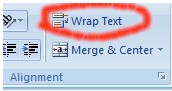
If you are going to write the large text in Excel Cell and its exceed from the cell width then its display in other column and when you write the text in Next column then the previous cell text which exceed from cell will be hide. You can Wrap this cell text, with Text wrapping option. When you wrap the the text it will be spilt in to multiple line in same cell width. For this purpose you have two way:
Wrapping Text Manually
First Place the cursor where you want to give line break and press Alt-Enter Key.
Wrapping The text Automatically
-
Select the cells that you want to format.
-
Click on the Home tab and click on Wrap Text Button image from Alignment group.
Merge and Center Option in Excel
The merge cell option make multiple cell in to single cell. Merge cell often use when you want to write the title in the center of your data in the specific cell range. as shown in the image below:

- Select cells for example C4 to C5 in our example.
- Click on the Home tab of the office ribbon.
- Click on the Merge and Center on the ribbon to merge the selected range of cells and to center align the worksheet title.
Conditional Formatting
In conditional formatting you can change the Cell formatting according to nature of data in the cell. in Conditional formatting we specify the condition and then its formatting. If the cell data satisfy our condition then the related formatting is apply on that cell.
Conditional Formatting Rule
Highlight Cell Rules
This rule highlights specific cells by changing its color according to your option choice. For example highlight cells if the value of the cell is greater than 100.
Top/Bottom Rules
This conditional formatting rules highlights the some top value cell. For example select the top 10 value.
Data Bars
Apply the Color bar according to Its value.
Color Scales
This option applies a two or three color gradient to the cells. Different shades and colors represent specific values.
Apply Conditional Formatting on Given Range of Cells
-
Select the cells you would like to format.
-
Select the Home tab.
-
Locate the Styles group.
-
Click the little arrow on Conditional Formatting command icon.
-
Select one of the rules to apply it to the selected cells.
-
In Appearing Dialog box Give the Criteria and its formatting.
-
If you have more then one criteria then repeat these step.
Remove Conditional Formatting
-
Select Clear Rules. A cascading menu appears.
-
Choose to clear rules from the entire worksheet or the selected cells.
Formatting The Rows and Column
In MS Excel you can adjust your sheets according to your own recruitment. The Rows and columns can be resized either automatically or manually to fit your information. you can also add and delete the rows and columns if you need.
Adjusting the Rows height
- Select any cell from the row to be adjusted or select multiple cell for each row to be adjusted.
- From the office Ribbon select the Home command tab.
- In the Cells group, click on Format button.
- From appearing List select Row Height.
- From the Row Height dialog box give the row height.
- Click OK
Adjusting the Column Width
- Select any cell from the Column to be adjusted or select multiple cell for each column to be adjusted.
- From the office Ribbon select the Home command tab.
- In the Cells group, click on Format button.
- From appearing List select Column Width.
- From the Column Width dialog box give the Column Width.
- Click OK
Fill option In Excel
Microsoft Excel give the facility to repeat
information in many cells throughout a worksheet.
Fill Cells Automatically
The following process show the Automatically filling. In this example we fill the The SNO from 1 to 10 in Column:

-
Select any cell where you want to write the first Number.
-
Type 1 in cell A3.
-
Now click and hold Fill Handle ( black square in the lower-right corner of the Cell which is circle with red color in above image This small black square is called the fill handle).
-
Now Drag the fill handle Downwards up to 10 cell. Note that the Auto Fill Options button appears.

-
Click the Auto Fill Options button. The Auto Fill Options menu appears.
-
Choose the Fill Series radio button. The cells fill as a series from 1 to 10.

Format Information as a Table
- Select any cell that contains information.
- Click the Format as Table command in the Styles group on the Home tab.
- A list of predefined tables style will appear.
- Click a table style to select it.
- A dialog box will appear. Excel has automatically selected the cells for your table.
- If your table has headings then Check the Box "May Table has headers" .
- Click OK.
- Now your data is formatted in table style and a New Menu design will be appear in office ribbon.
- You can change the style and set other option for example delete header row and add Total row in the end etc.
Sorting In Excel
Sorting means arranging the lists in desire order. Sorting is a common task which is often use. You can sort the list in ascending or descending order.
Sorting procedure:
-
Select a cell in the column you want to sort .
Select the Home tab. -
Click the Sort & Filter command from Editing group.
If your selected cell have text format then you have following option. -
Select Sort A to Z.
or
Select Sort A to Z.
or
Custom Sort
-
If your selected cell have number format then you have following option.
-
Select Sort smallest to largest.
or
Select Sort largest to smallest.
or
Custom Sort
Customize sorting
If you want to perform Multiple Levels sorting then select custom sort option.
-
Select first cell of the table.
Select the Home tab. -
Click the Sort & Filter command from Editing group.
A lost appear with different option select Custom sort from list. -
you can also select Sort option from Data Menu and Sort option.
-
Click the Sort command to open the Custom Sort dialog box.
-
Select column which you want to sort. and then order type. A to Z or Z to A or Smallest to largest (depending on your data type).
-
Now click Add Level to add another item to sort by.
-
Select Other column name and then order type.
-
Click OK.
Filtering Cells
If you have many content in you worksheet and you want to Find some specific data . for example if you have data about the payment of some person and tou want only one person data then in excel you can use filter. Filter basically hiding the data on temporarily basis.
Filter the Data
-
Click any one cell in your table.
-
Select data Tab from Office ribbon.
-
Click the Filter command from sorting & Filter
group. You can also select Filter form Home Tab in Editing group.
-
Drop-down arrows will appear beside each
column heading.
Click the drop-down arrow next to the heading you would like to filter. For
example, if you have data about the student Result and have a column Grade.
You want to display the all record have Grade "A" then click on drop-down
arrow next to Grade Coolum Heading and Uncheck Select All.
Choose "A".
Click OK.
-
All other data will be filtered / hidden and
only those student record show who have grade "A".
To Clear Filter
-
Click any one cell in your table.
-
Select data Tab from Office ribbon.
-
Click the Filter command from sorting & Filter group. You can also select Filter form Home Tab in Editing group.
-
Drop-down arrows will appear beside each column heading.
Click the drop-down arrow next to the heading you would like to filter. For example, if you have data about the student Result and have a column Grade. You want to display the all record have Grade "A" then click on drop-down arrow next to Grade Coolum Heading and Uncheck Select All.
Choose "A".
Click OK. -
All other data will be filtered / hidden and only those student record show who have grade "A".
To Clear Filter
Select one of the drop-down arrows next to a
filtered column.
Click on Clear Filter From.
PivotTable In MS Excel
The Excel Pivot table is called summarize table which is created form an other complicated table. A pivot table is a great reporting tool that sorts and sums independent of the original data layout in the spreadsheet.
For example if you have a data about the student monthly test information of the three subject like English, Math and computer and you want to Get the detail of One student. This is easily possible with pivot table.
Process of Creating Pivot table In Excel 2007
Select very first cell of your data.
Now click on Pivot Table in Insert menu form Table group and in appearing dialog box selected range is show in Table Range.
Select The New Worksheet Option or existing worksheet .
Click On ok button.

Now a panel on the left side of the worksheet is appears.
Now drag the every field in specific aria. for example in report filter insert the field which you want to search. In our case Name is inserted in Report filter so we can display the record of each student by selecting the name. Marks placed in the Value aria box for calculating the SUM of Marks. Now in the Column area, we'll put Month, and in the Row area we'll put Marks.
As you drag all the field on by one your pivot table is created in the worksheet.
After this step close the left panel (pivot table list Fields panel ).
Read Complete Tutorial of Pivot Table step by step with detail example and screen snap.
Creating a Chart
Charts is graphical representation of data. Charts can be a useful way to communicate data. When you insert a chart in Excel, it appears in the selected worksheet with the source data.
Process of Creating a Chart
-
Select the cells that you want to chart, including the column titles and the row labels.
-
Click the Insert tab from office ribbon.
-
Select one of the Chart options from Charts Group. For example Columns chart command.
Select a type of chart from the list that appears. For this example, we use a 2-D Clustered Column. -
Now your chart display on The Worksheet and three new Menu tab Design , Layout and Format are appear on Office Ribbon.
-
Click On Design Tab.
-
Click on Move Chart. In appearing dialog box select "One New Sheet" or "Object on This Sheet".
-
You can also add remove data By Clicking on Design Tab and Selecting Select Data Command.
-
From layout Tab you add Title, Legend and other Components of Charts.
-
Form Format menu you can format your charts color , Background color etc.
Charts Terminology
Source Data
The range of cells that make up a chart. The chart
is updated automatically whenever the information in these cells change.
Title
The title of the chart.
Legend
The chart key, which identifies each color on the chart represents.
Axis
The vertical and horizontal parts of a chart. The vertical axis is often
referred to as the Y axis, and the horizontal axis is referred to as the X axis.
Data Series
The actual charted values, usually rows or columns of the source data.
Value Axis
The axis that represents the values or units of the source data.
Category Axis
The axis identifying each data series.
SUBTOTAL in Excel
SUBTOTAL command in excel basically calculate the values by dividing the list in sub list . before applying the subtotal command first of all you must sort the list in this way list is spilt in groups. after this apply the subtotal command. For example if you have list of payments which are made by you sales man on different days and you want to calculate the total payment of each student and then grand total of all payments. This is very easily possible with subtotal command in excel.
To Create Groups with Subtotals:
-
First of all arrange you data. Because the Subtotal feature evaluates groups, you must sort your data first. you must sort by the column that contains the grouping value. for example in above example name of sales man.
-
After Sorting select any cell of your Data.
-
Click on Data menu form office ribbon and select Subtotal.
-
Click the Subtotal dialog box appears.
-
Select the column that contain the grouping value. This is the same column by which you sorted your list in previous step.
-
Select the function you want to apply on groups value. For example SUM .
-
Select the column you want the Subtotal to appear. you can also select more then one column for subtotal.
-
Click OK.
Naming Worksheets
When you open an Excel workbook then by default there are three sheets will be open automatically. by default these sheet have name sheet1 and sheet2 and sheet3. Excel 2007 allows you to define a meaningful name for each worksheet with your own choice.
To Name a Worksheet
-
Open work book in excel.
-
Right-click the sheet tab to select it.
-
In appearing menu choose Rename option. The Old name of The Sheet is highlighted.
-
Type a new name for the sheet.
-
Press enter key or click off the tab.
-
Done.
OR
-
Click the Home Menu tab in Office Ribbon and Then click on Format command icon from Cell group.
-
Select Rename Sheet. The text is highlighted by a black box.
-
Type a new name for the worksheet.
-
Press enter Key or Click off the tab.
-
Done
Inserting New Worksheets In Excel
When you open a new workbook then by default there is three worksheet. You can also add more worksheet if you required.
Insert a New Worksheet:
-
Click on the Insert Worksheet icon on worksheet tab bar.
-
A new sheet will appear. It will be named Sheet4, Sheet5 and up to so on.
-
You can also Press Shift and the F11 keys on your keyboard.
OR
-
Click the Home Menu tab in Office Ribbon and Then click on Insert command icon from Cell group.
-
Select Insert Sheet.
-
New Sheet will be inserted.
-
Done
Deleting Worksheets In Excel
You can also delete the worksheet form your excel
work book. by deleting worksheet all the data in this sheet will also deleted.
Delete One or More Worksheets:
-
Click on the worksheet you want to delete on worksheet Tabs Bar.
-
Right-click on the work Sheet.
-
Select delete option from appearing menu.
OR
-
Select the sheet you want to remove.
-
Click on Home Tab and then Click on Delete Command Icon form Cell group.
-
From appearing menu select Delete Sheet option.
-
Done.
Naming The Cells and Ranges in Excel
In excel you can also give a unique name to any cell or any cell range. This name will also be sue in excel formulas.
For example if you have table of sale and purchase details and have cell A1 which have total Purchase and other cell B1 have total Sale The in C3 if you want to calculate the total profit the in cell C1 write the following function
=B1-A1
if you want to give your own unique name to cell which contain the total sale and total Purchase then the following procedure will be use:
-
Select a cell or range.
-
Click Formulas Tab in office ribbon.
-
Click on Define Name command icon form Defined Names group.
-
From appearing dialog box type the name of the cells. select the Scope from drop down list which specify where the name is valid for use in this sheet or in whole workbook.
-
Enter any comments that you think would help.
-
The Refers to box display the the cell range you selected.
-
Now click on ok button
OR
An other quicker way to assign a name is:
-
Select the required cells and then simply type the name into the name box (to the left of the formula bar).
-
Press the enter key to complete the assignation.
-
Done

Goal Seek in Excel
Some time we know the required result but not know the the input value to get that desired result. Then we use Goal Seek for this purpose. Goal Seek find the the exact input value which give the desired result. For example in cricket match first team set the target of 290 score and second team want to achive that score where total over are 50. So question is that how many score per over required.
For example
Target Over Per-over-score total
290 50 ? =50 * ?
So in this example we know the result but missing the input value " Per-over-score " . The solution is Goal Seek.
Procedure of Goal Seek:
Spouse you have the following values
| A | B | C | |
| 1 | Over | Per-over-score | Total |
| 2 | 50 | =A1*B1 |
-
Now Select the C2 Cell where you write the formula.
-
Select The Data menu Tab from office ribbon.
-
Select What if Analysis form Data tools Group.
-
In appearing List select Goal Seek.
-
In appearing dialog box in set "Set cell" automatically your formula cell reference is appear.
-
In "To Value" box write the Target value in our case target value is 290.
-
Now click on "By Changing Cell" text box and then click on your missing value cell in our case B2. The cell reference of B2 will be display in By Changing Cell" box.
-
Click OK.
-
Excel will then Set the cell B2 to the Value of 5.8.
-
Click OK.
So Goal Seek has given us the answer we wanted: it is 5.8 run per over for achieving the target of 290 score in 50 over.
Watch full video tutorial of Goal Seek
Scenarios Manager
Scenarios manager help to calculate the one or more then formula with different values. if you have more then one set of values and want to chose which set of values provide the best and suitable result then you can use scenarios manager.
If you have own a shop and your target per day profit is 6400 and assume after 30 days you earn 6400* 30= 192000. Your daily expense is 2900 and after 30 day your expenses are 2900* 30 = 87000. in This way your gross profit is 192000-87000=105000.
| A | B | C | |
| 1 | Days | 30 | |
| 2 | Profit Per Day | 6400 | |
| 3 | Total Profit | 192000 | |
| 4 | Expenses Per Day | 2900 | |
| 5 | Total Expenses | 87000 | |
| 6 | Gross Profit | 105000 |
The above figure are taken from normal days now If you want to calculate the profit and expenses of Off session and ON session then what are the result. This will be calculate through the scenario manager.
Create a scenario
-
Select Data Manu Tab fro office Ribbon and then click on select What if Analysis item from Data Tools group.
-
Now select scenario manager from appearing list.
-
Click on Add button from appearing scenario dialog box.
-
In next dialog box give Scenario name. first for OFF session.
-
In the Changing cells text box, enter the cells that you want to change. Hold down CTRL and click each cell in the worksheet.
-
Click OK.
-
Now repeat above steps for Running session.
-
Now display the scenario in next step.
Display The Scenario
There are you can just show the scenario, by selecting any one scenario name from scenario manager dialog box which you add in previous steps. This change will show in actual table. But you can also create Summery Report.
Display Scenario Summery
-
For this purpose click on Summery button from Scenario manager dialog box.
-
When you click on Summery button then scenario summery dialog box appear.
-
Select Scenario summery from given two option. You can also create Scenario Pivot table .
-
Place the cursor in Result cell text box and then click on you final formula.
-
Click the OK button.A Scenario Summary sheet is added to the workbook.

Data validation
Data validation are entry level check. Data validation restrict user to enter valid data in The excel Cell. For example if you are enter the age of the student and the rules is that student age must be enter in between 20 to 30 then you can impose data validation on that cell where you want to insert this data.
Impose data validation
-
Select the cell you want to validate.
-
Select Data Tab from office ribbon and then Click on Data validation from Data Tools group.
-
from appearing List select Data Validation.
The Data Validation dialog box will be open. -
In the Data Validation dialog box, click the Settings tab.
-
Click on the Allow box then select Whole Number (you can select any one from given Option).
-
Select the maximum and minimum value.
-
You can also Set the Input Message by Clicking on Input Message Tab in data validation dialog Box.
-
Give the Message which will be appear when you enter the data. for example "Enter The age".
-
You can also Set the Error message which be appear when you insert Wrong data which will not meet with your validation criteria. For this purpose select Error Alert Tab from Data validation Dialog Box and give the Error message For example "Invalid data".
-
You can also select one of the following options for the Style box:
Information: Display an information message. Does not prevent entry of invalid data.
Warning: Display a warning message. Does not prevent entry of invalid data.
Stop : Prevent entry of invalid data.
Excel Advanced Filter Introduction
The Advanced filter extract the data on different
sheet. if you have many content in you worksheet and you want to Find some
specific data . for example if you have data about the payment of some person
and you want only one person data then in excel you can use
filter and Advanced filter. Filter only hide the data and display only that data
which you want but Advanced filter extract the your required data and display on
some different locations may be on same sheet or on other sheet.
Example:
if you have table with name and there city as show in following table.
| A | B | C | D | |
| 1 | Name | City | ||
| 2 | Qasim | DIKHAN | ||
| 3 | Saleem | Lahore | ||
| 4 | Ali | Karachi | ||
| 5 | Faria | Lahore | ||
| 6 | Majeed | Karachi |
Now first of all set the Criteria Range for example if you want to extract those record where city is Lahore write Column name "City" and seprate column for example in column D. and Below this write the City name Lahore. You can add more then one City Name.
|
A |
B |
C |
D |
|
|
1 |
Name |
City |
|
City |
|
2 |
Qasim |
DIKHAN |
|
Lahore |
|
3 |
Saleem |
Lahore |
|
|
|
4 |
Ali |
Karachi |
|
|
|
5 |
Faria |
Lahore |
|
|
|
6 |
Majeed |
Karachi |
|
|
Now apply the Advanced filters:
-
Select a cell in the of your data.
-
Click on data Tab in office ribbon and click on Advanced Filter from Sorting & Filter Group.
-
In Appearing Advanced Filter Dialog Box select Filter List in place or copy on other location. If you want to extract the data on new location then select 2nd one.
-
Excel should automatically detect the list range. If not, you can select the cells on the worksheet.
-
Select the criteria range on the worksheet. In our example D1 to D2.
-
If you are copying to a new location, select a starting cell for the copy.
-
Click OK
Filter Unique Records
You can use an Excel Advanced Filter to extract a list of unique items in the database. For example in above table if you want to extract the Unique city name then:
-
Select a cell in the of your data.
-
Click on data Tab in office ribbon and click on Advanced Filter from Sorting & Filter Group.
-
In Appearing Advanced Filter Dialog Box select Filter List in place or copy on other location. If you want to extract the data on new location then select 2nd one.
-
Excel should automatically detect the list range. If not, you can select the cells on the worksheet.
-
Select the criteria range on the worksheet. In our example D1 to D2.
-
Check the box "Unique Record Only", form the bottom of Advanced Filter Dialog Box.
-
If you are copying to a new location, select a starting cell for the copy.
-
Click OK
Data Table
Data table show the result of more then one input values (in shape of row or column ) at the same time. For example if you have values which calculate the Final price by adding the Tax in real price.
if you have data
|
A |
B |
C |
D |
|
|
1 |
Price |
Tax |
|
|
|
2 |
4000 |
10% |
|
|
|
3 |
|
|
|
|
|
4 |
|
|
|
|
|
5 |
|
|
|
|
|
6 |
|
|
|
|
-
Now you want to calculate the Net price by adding the tax 10% , 11%, 12% , 13%, and 14% . This is done by data table. -
Now add the all the tax value in next column after the 10%( in column C after the first tax value 10%).
| A | B | C | D | |
|
1 |
Price |
Tax |
|
|
|
2 |
4000 |
10% |
11% |
|
|
3 |
|
|
12% |
|
|
4 |
|
|
13% |
|
|
5 |
|
|
14% |
|
|
6 |
|
|
15% |
|
Now in In next column one step up word write the formula.
|
A |
B |
C |
D |
|
|
1 |
Price |
Tax |
|
=(A2*B2)+A2 |
|
2 |
4000 |
10% |
11% |
|
|
3 |
|
|
12% |
|
|
4 |
|
|
13% |
|
|
5 |
|
|
14% |
|
|
6 |
|
|
15% |
|
=(A2*B2)+A2 this formula first calculate the 10% of of total price and the add in to Total price 4000. This is like this (4000 * 10%) +4000.
- Now select the range C1 toD6.
- Now Click on data Tab from office Ribbon.
- Click on What- If analysis from Data Tools and select Data Table in appearing List.
- Next appearing Data Table dialog box Place the Cursor in Column input Cell text box (You can also select row input if your replacement value in row wise).
- Now click on that value which will be replace in formula in our example B2.
- Click on Ok button.
Text to column
When importing data into a worksheet, it is often place in one cell and necessary to separate the cell contents into two columns. For example you copy the name and father name like Saleem S/O Junid. when this text copy in to a cell and you want place each part of text in to separate column then you can use Text to Column option in excel.
-
Select the cell range.
-
Click the Data tab from office ribbon and then click the Text to Columns command in the Data Tools group.
-
In Step 1 of the Convert Text To Columns Wizard, click Delimited option.
Click Next to advance to Step 2 of the wizard, then select the Space check box and clear the Tab check box in the Delimiters section. -
Click on Finished Button.
-
After you click on finish button. Your text will spilt in to column.
Consolidation
Data Consolidation merge the data from several
excel sheets to one place (other sheet). When you consolidate the data then data
will be summarize from one or more source areas by consolidating it and creating
a consolidation table. These source areas can be on the same worksheet as the
consolidation table, on different sheets in the same workbook, or in different
workbooks. When you consolidate the source data, you apply a summary function,
such as the SUM () function, to create the summary data.
There are two ways of Consolidation
-
Consolidate data by Position
-
Consolidate data by Category
-
Consolidation by position
When the data in the source areas is arranged in the same order and uses the same labels. Then you can use consolidation by position. Use this method to consolidate data from a series of worksheets, such as departmental budget worksheets that have been created from the same template.
Consolidation by category
When the data in the source areas is not arranged in the same order but uses the same labels. Use this method to consolidate data from a series of worksheets that have different layouts but have the same data labels.
Process of Consolidation
-
Type the data sheet 1 and sheet2.
-

-
You can see the two sheets contain the information about salesman who give some amount to company after sale. In both sheet columns location and column Heading or same but the data in these sheet are tow different month so we consolidates these two sheet using sum function (Means that the amount of payment of that salesman which are in both sheets are added with each other in single row)
-
Now take following steps
-
Open a new Sheet and Click in The cell.
-
Click on data Tab from office ribbon and then select Consolidate from Data tools Group.
-
In appearing dialog box select the function In the Function list. For example Sum
-
In the Reference box, type each source area you want to consolidate, and then click Add. In this example, type the first area, Sheet1!$A$1:$C$6, and then click Add. Type the second area, Sheet2!$A$1:$C$6 and then click Add.
Under Use labels in, select the Top row check box and the Left column check box. -
Click OK.
Notes of Computer Network
Notes of MS Access
Notes of Adobe Photoshop For DIT
Notes of Inpage
Notes of Database
Notes of E-Commerce
Notes of Web Technology / HTML
Notes of Microsoft Word 2007
Notes of MS Excel 2007
Notes of C Language
Notes of Operating System For DIT
Notes of information technology Part -1
Notes of information technology Part -2
Notes of CorelDraw
Notes of Power Point